
How to pick a streaming device for your TV
Start with your TV, your favorite apps and the remote your household will actually want to use. Then check the full cost before you buy.
In this guide
Start with your TV’s ports, supported picture formats and the apps you watch most. Look for a device that fits your screen, runs the apps you watch and feels easy for everyone at home to use. Then check whether the price is a good one.
A streaming stick may be all you need. A box might earn its place if you want extra connections. Either way, a long feature list is only useful if you’ll use what’s on it.
Start with your TV, apps and household
First, find your TV’s model number and check its manual or settings. Look for an available HDMI port and note the picture features your TV supports. Also check where the device will get power and whether you can reach the connections.
Next, make a short list of the apps your household uses. Check the device’s current app listings for each one, especially local, niche or live TV services. Don’t assume an app is there just because a device supports other popular services.
Think about the people holding the remote, too. Would they rather use a simple menu, voice search or a phone? If you already use a voice assistant or smart-home system, check whether the device works with it before counting that as a perk.
Check the picture: 4K, HDR and your TV
You’ll see 4K and HDR on plenty of device listings. Check those labels against your TV’s specs rather than treating them as automatic upgrades. HDR formats can differ, so look for a match between the device and your TV.
For example, if a device lists Dolby Vision, check whether your TV supports Dolby Vision too. Also check the picture options for the apps and shows you plan to watch. A feature on the box isn’t a promise that every show will use it.
Have an older TV? Compare an HD device with a 4K option, but keep your plans in mind. If you expect to replace the TV, a 4K device may be worth considering now. If not, focus on the apps and features you can use today.
Pick a stick or box for your setup
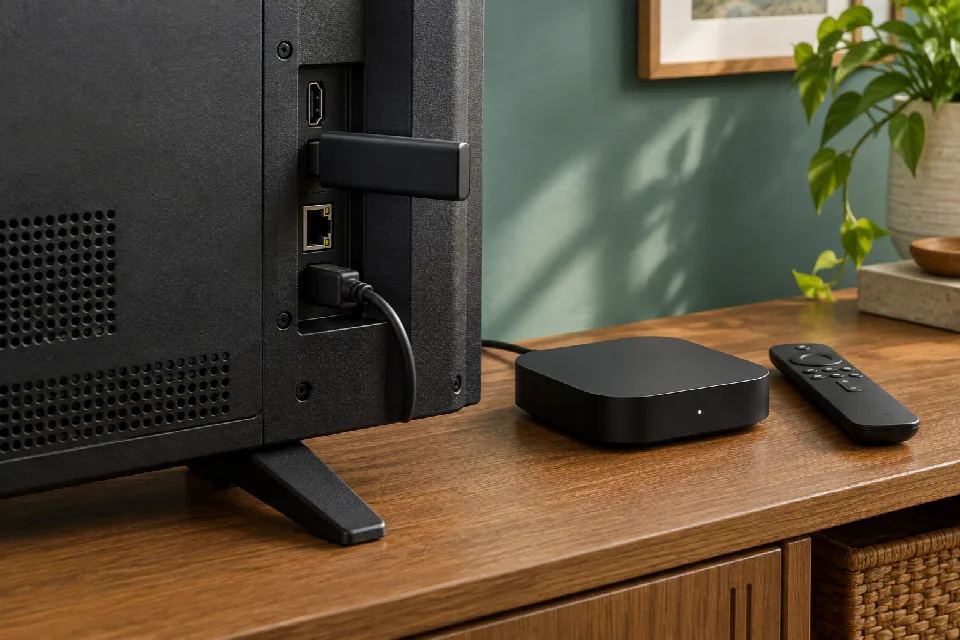
A stick is a compact choice that connects to an HDMI port. Before ordering, look behind your TV: a crowded or hard-to-reach port could make the fit awkward. Check the package contents and power requirements as well.
A box needs a spot near the TV, but some models offer an Ethernet connection. That gives you another connection option if Wi-Fi is a concern. Check the exact model’s ports and whether you’d need a separate cable or adapter.
Don’t pay extra for a box just because it looks more serious. Ask what it adds to your setup. If you won’t use its extra connections or smart-home features, a stick may be the neater pick.
Compare remotes, Wi-Fi and home screens
The remote is the part you’ll reach for every time. Look at its buttons: can you find the controls you care about, such as volume, mute or voice search? Check whether the remote can control your TV, rather than assuming it will.
For Wi-Fi, compare the device’s listed support with your home setup. Some streaming devices list Wi-Fi 6 or 6E, but check the exact model rather than relying on the brand name. If you’re considering a wired connection, confirm that the device has an Ethernet port.
Finally, look up images or a demo of the home screen. Can you find your apps quickly? Are you comfortable with the recommendations and ads shown? The menu you like is the one you won’t have to wrestle with on movie night.
Check the deal against past prices and total costs
Found a device that fits? Now put the deal under the magnifying glass. Search for the exact model name and compare its current price across sellers. Use a price-history tool where available, and make sure the history is for the same model and condition.
Then check the final checkout total, including shipping and any accessories you need. A device that needs an extra adapter may cost more than the shelf tag suggests. Check whether any streaming subscriptions you want are separate, too.
Read the return terms and confirm whether the device is new, used or refurbished. For a refurbished item, check the seller’s description and warranty terms. If two listings look alike, compare the full model names and included remotes before choosing.
Spot it: your streaming device checklist
- Check the HDMI port, power needs and space around your TV.
- Confirm your must-have apps and picture formats on the exact model.
- Choose a stick or box based on the connections you’ll use.
- Inspect the remote, Wi-Fi support and home screen.
- Compare past prices, checkout totals, condition and return terms.
Sources
- www.techcityng.com · /best-streaming-device
- pickedtech.com · /tvs/best-streaming-devices
- www.pcmag.com · /picks/the-best-media-streaming-devices
- www.stackandvalue.com · /best-tv-streaming-devices-2026
- www.theverge.com · /gadgets/1034612/amazon-fire-tv-stick-4k-plus-black-friday-2026-deal-sale
- www.macrumors.com · /2026/11/16/new-apple-tv-4k-discount-returns-at-amazon
- lifehacker.com · /tech/how-to-choose-a-streaming-device
- www.cnet.com · /tech/home-entertainment/best-streaming-device